Guide · about 3 minutes
Connect Google Search Console and GA4 to Claude
One free, read-only connector gives Claude or ChatGPT your Search Console and Analytics numbers for every site you own. Here is how to set it up, then what to ask.
The short version
Five steps
- 1
Connect Google to TrafficClaw
Sign in with Google. TrafficClaw asks for read-only access to Analytics and Search Console, nothing else. Every site your Google account can see is listed.
- 2
Copy the server URL
One URL works for every site and every app. It is in the box below, with a copy button.
- 3
Add it to Claude or ChatGPT
Paste it as a custom connector (Claude) or custom MCP server (ChatGPT). Pick OAuth.
- 4
Approve and choose sites
Sign in with Google in the window that opens, pick which sites the app may read, and click Allow.
- 5
Ask a question
Start a chat, make sure the TrafficClaw connector is on, and ask about your traffic.
Steps 2 and 3
Add the server to your app
Same URL everywhere. Pick your app for the exact clicks.
Sign in, then copy the URL
An account is how you choose which sites an app may read.
Server URL (MCP, Streamable HTTP)
https://trafficclaw.com/mcpAdd it to your app
- 1Open Settings > Connectors > Add custom connector.
- 2Paste the server URL. For the OAuth client choose "Use Claude's published identity" ("Register automatically" also works).
- 3Click Add, then Connect. Sign in with Google, choose sites and click Allow.
- 4In a chat, open + > Connectors and make sure TrafficClaw is on.
Step 5
What to ask
Ask in plain words. The AI picks the right tool from the 13 read-only ones.
Traffic
Visitors, sources and pages from Google Analytics
- “Compare all my sites over the last 28 days and tell me which one needs attention.”
- “Where do visitors from ChatGPT land on my site?”
- “How many people are on my site right now?”
Search
Clicks, queries and indexing from Search Console
- “Which of my sites lost the most clicks this week, and why?”
- “Which queries for my main site are on page two of Google and worth improving?”
- “Is my newest blog post indexed?”
Weekly digest
One message to start your week
- “Write my weekly digest: what went up, what went down and what to fix first, for every site.”
- “Compare this week with last week for each site in one short table.”
See all 13 tools and what each one does on Connect AI.
Prefer to look first?
The same numbers on screen
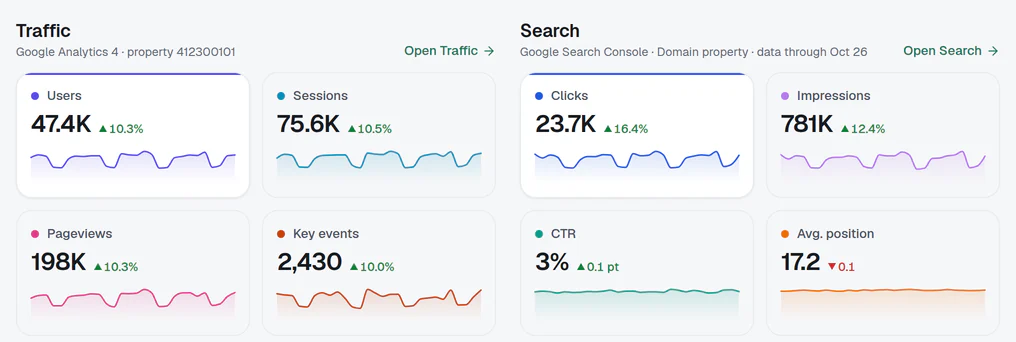
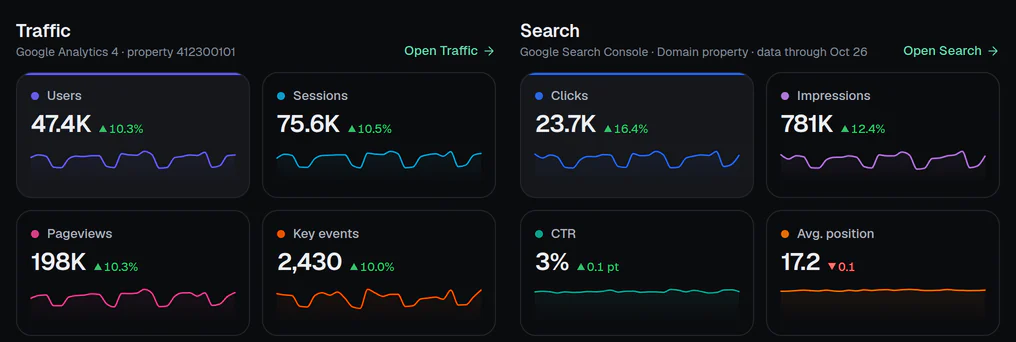
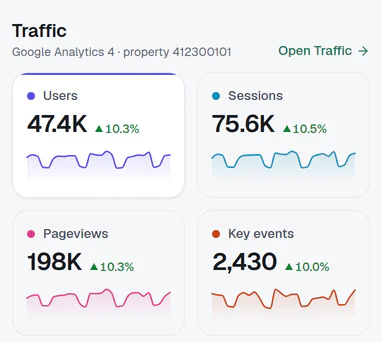
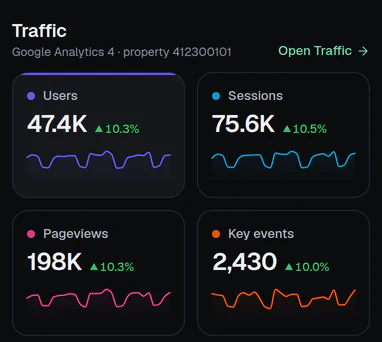
TrafficClaw also shows them as pages and dashboards. Open the live demo, no sign-in.
Questions
Do I need both Search Console and Google Analytics 4?
Is it free?
Can the AI change anything in Google?
Why can I not find "custom connector" in my app?
Which apps does the same URL work with?
How do I disconnect?
Compare tools: TrafficClaw alternatives. Google Analytics and Search Console are trademarks of Google LLC; Claude and ChatGPT belong to their owners. TrafficClaw is not affiliated with them.
Ask Claude about your traffic today.
Connect Google once. Read-only, nothing to install, no card, no site limit.